
Websites often ask for permission to send you “push notifications.” When used correctly, this feature is highly convenient. If you use a communication tool like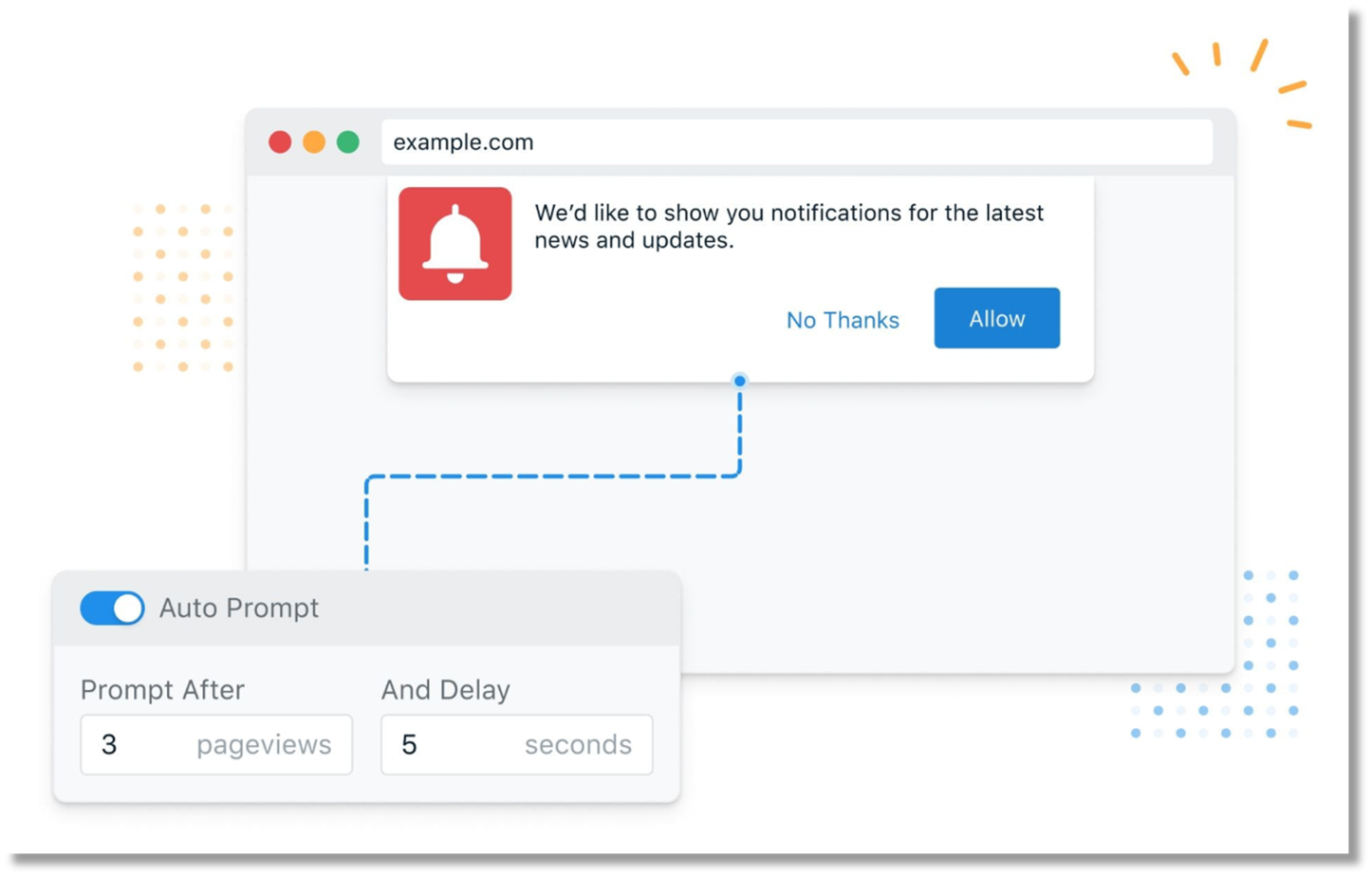 Microsoft Teams or a news website in your browser, a small pop-up in the corner of your screen can alert you to a new message or breaking news, even if that specific window is minimized. Unfortunately, cybercriminals frequently abuse this same feature to launch deceptive scam campaigns.
How the Trap Works
The notification itself cannot harm your computer or steal your data. The danger only begins if you interact with it. The goal of the scammer is to scare you into taking one of two actions:
- Clicking the notification: When you click the alert, it opens your web browser and often directs you to a malicious website (or redirects you through a chain of hidden sites). Once there, the site uses aggressive scare tactics, such as fake progress bars, flashing red screens, or countdown timers to coerce and pressure you into clicking a link that downloads actual malware onto your device.
- Calling a phone number: The alert may provide a fake “IT Support” or “Help Desk” number. If you call, a scammer will use social engineering tactics to trick you into handing over passwords, financial information, or granting them remote access to your computer
What You Should Do
The most effective defense against this tactic is awareness. If you are already receiving these disruptive alerts, you can easily stop them by revoking the website’s permission within your internet browser. Whether you use Google Chrome, Microsoft Edge, Safari, or Mozilla Firefox, the process is straightforward:
-Open Browser Settings: All Browsers.
Click the three dots or lines in the top-right corner of your browser and select Settings.
-Navigate to Site Permissions: Privacy & Security.
Look for a section labeled Privacy and Security or Cookies and Site Permissions, then click on Notifications.
-Review the Allowed List and Identify the Culprit.
Scroll down to the “Allow” or “Allowed to send notifications” list. Look for any website names you do not recognize or that seem suspicious.
-Remove or Block: Stop the Alerts.
Click the three dots next to the suspicious website and choose Remove or Block. This instantly revokes its ability to send pop-ups to your desktop.
Final Tip: To prevent this from happening in the future, you can go to your browser’s notification settings and toggle the option to “Don’t allow sites to send notifications.” This will stop websites from even asking for permission.